
Chartink is where Indian traders run their daily technical scans; TradingView is where they analyze charts. The frustrating bottleneck has always been moving tickers between them: a scan can return 40, 80, or 150 stocks, and TradingView's free plan caps you at only 30 symbols in a single list.
Below, we examine both methods: the tedious manual copy-paste workaround, and the seamless 1-click extension method with instant daily re-sync.
Method 1: The Tedious Manual Way
Without an extension, transferring stocks from Chartink to TradingView requires painful repetitive work every morning:
- Run your screener on Chartink.com.
- Click the "Copy" or "CSV" export button at the bottom of the table.
- Open a spreadsheet or text editor to clean the column data, removing company names, percentages, and prices to isolate ticker symbols.
- Add
NSE:orBSE:prefixes to each ticker so TradingView doesn't confuse Indian stocks with international symbols. - Join the symbols with commas (e.g.
NSE:RELIANCE, NSE:TCS, NSE:INFY). - Open TradingView, click Import Watchlist, and paste the string.
The Major Drawbacks of Manual Import:
1) Free Plan Limitation: If your Chartink scan returns more than 30 stocks, TradingView truncates your list or prompts you to upgrade to Pro ($14.95/mo).
2) Zero Daily Sync: When market conditions change tomorrow, you must re-do the entire copy, format, and paste routine from scratch.
Method 2: The 1-Click Extension Method (Recommended)
With the free Unlimited Watchlists Chrome Extension, the entire workflow becomes automated.
Step 1: Install & Pin the Extension
Install the extension from the Chrome Web Store and pin the icon to your toolbar for quick access.
Step 2: Open Any Chartink Screener
Navigate to any screener on Chartink (such as "15 Min Volume Shockers", "52 Week High Breakouts", or "RSI Bullish Reversal").
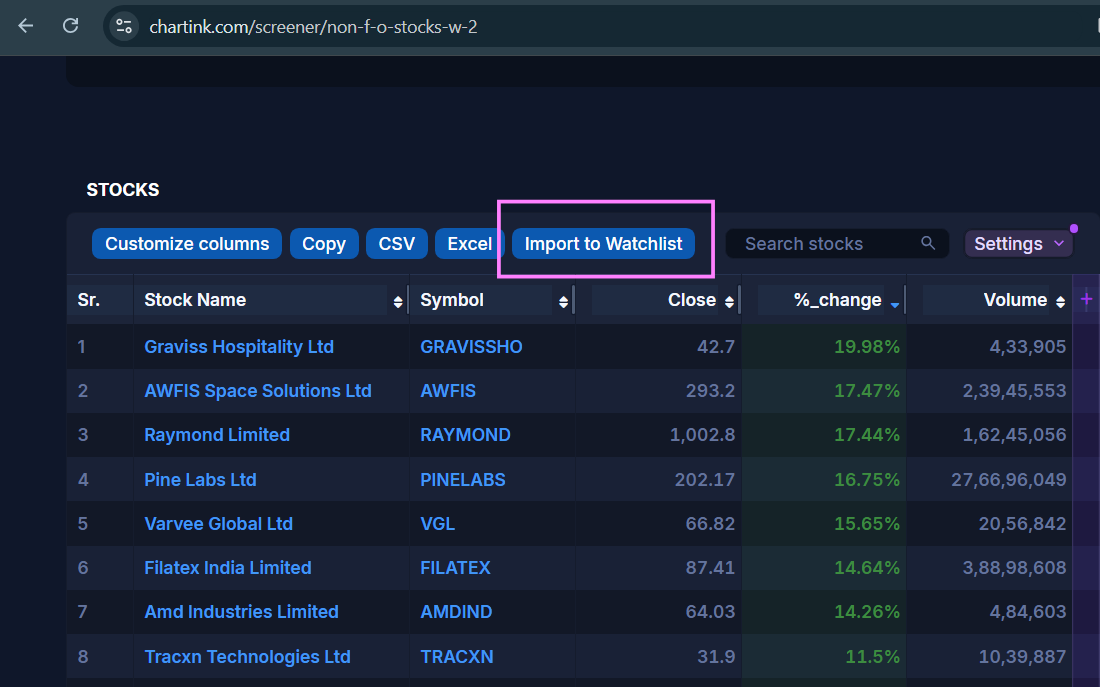
You will see a dedicated blue "Import to Watchlist" button right above the results table:
Step 3: Click "Import to Watchlist"
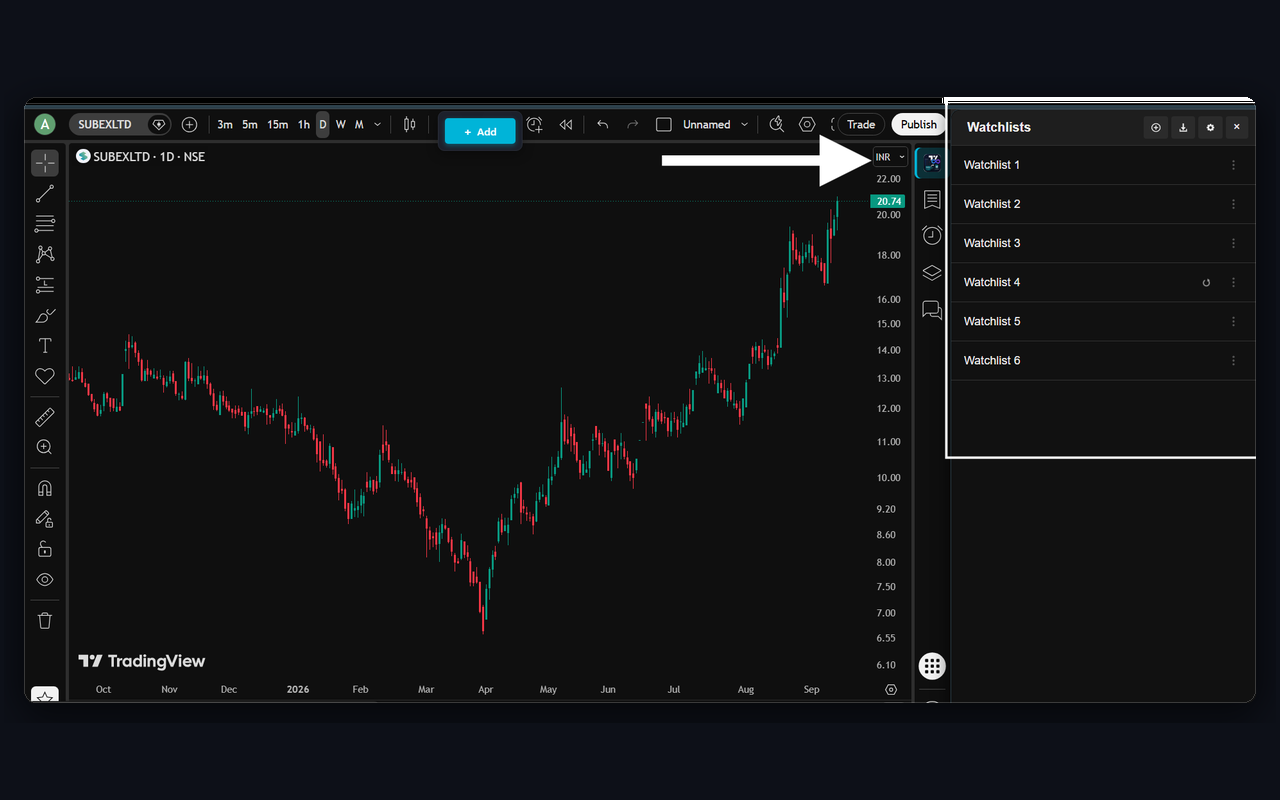
Click the button once. The extension reads every single page of results (even if there are 200+ stocks across 5 pagination pages), formats the tickers, and creates a brand-new watchlist named after your screener inside your TradingView side panel.
Step 4: The 1-Click Re-Sync Feature
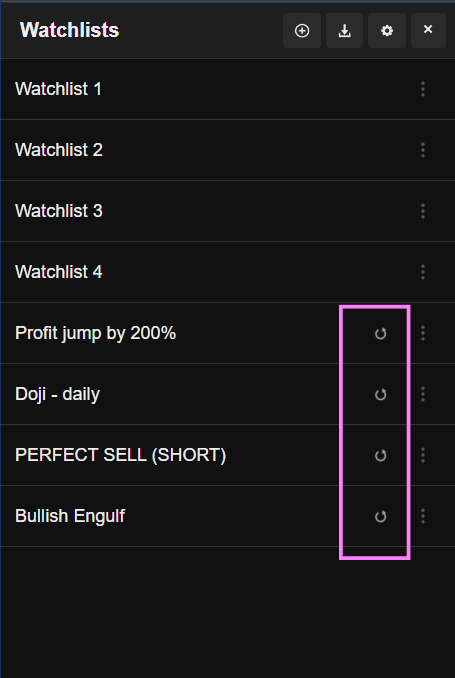
Here is the game changer: imported Chartink watchlists permanently remember their original screener URL!
Next morning when markets open, you don't even need to open Chartink. Simply click the circular ↺ Re-Sync icon next to the watchlist name. The extension queries Chartink in the background and refreshes the list with today's live results in 1 second.
Pro Tips for TradingView Screener Workflows
- Spacebar Chart Cycling: Once your scan is loaded, press Space on your keyboard. TradingView immediately switches to the next ticker without page reload, allowing you to review 50 charts in under 2 minutes.
- Right-Click Color Flags & Notes: As you review setups, right-click any ticker to flag high-probability setups with Green, Blue, Gold, or Purple dots, or write trade notes like "Buy > 380 SL 365".
- Multi-Screener Structure: Import multiple scans (e.g. one for Intraday Breakouts, one for Weekly Swings). Each scan stays neatly organized in its own tab.
Import Your First Screener in Seconds
100% Free Forever • No TradingView Pro Required • No Account Needed
Add to Chrome — Free